
1. Open the Excel spreadsheet with current Cost of Attendance (COA) data.
2. Open the Cost of Attendance Word template.
3. In Excel, copy the data for a program and paste it into the COA Word template.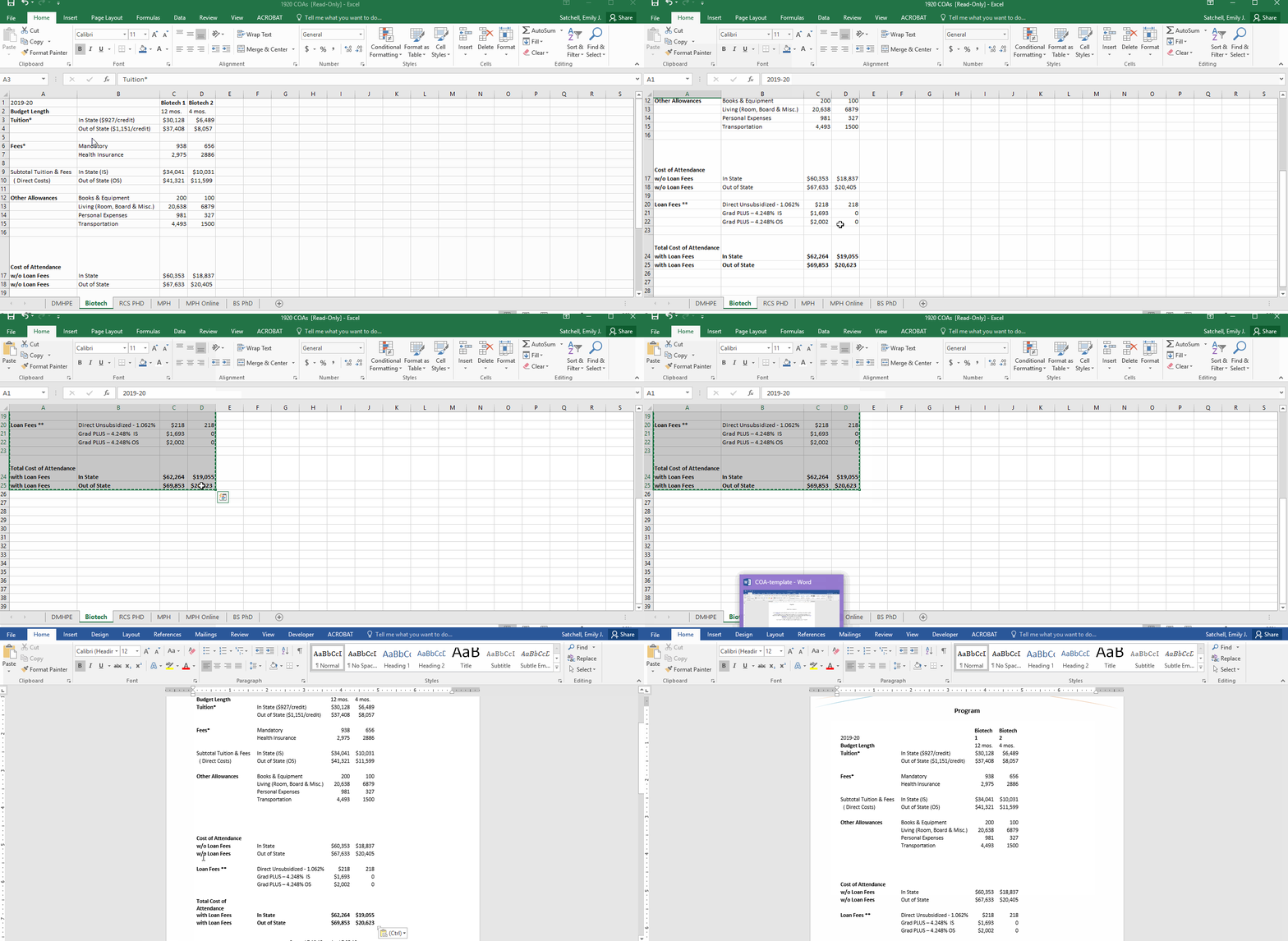
4. Adjust the size of the table, center the table and add the name of the program above the table.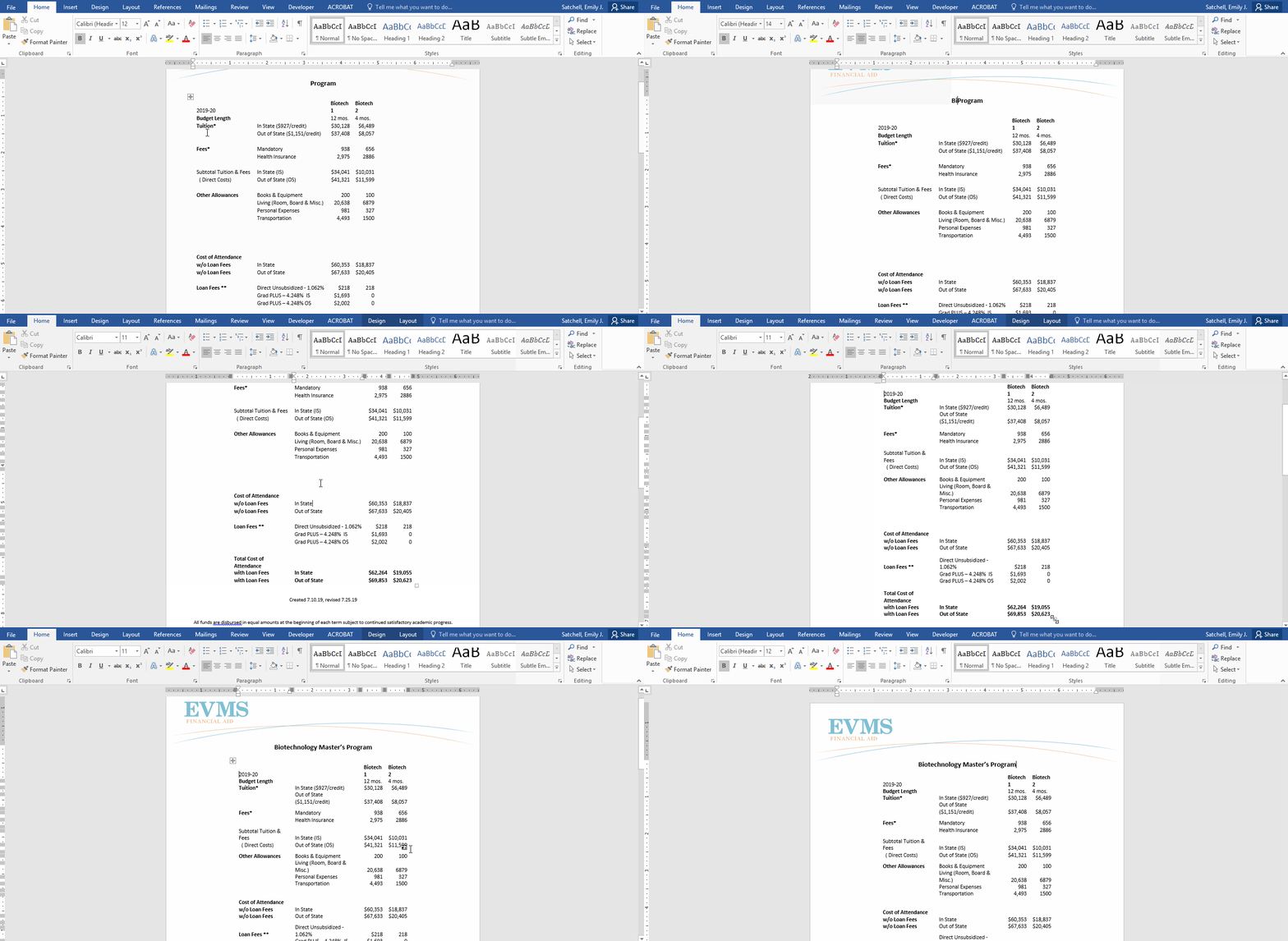
5. Click File > Export > Create Adobe PDF. This will open the document in Adobe Acrobat Pro.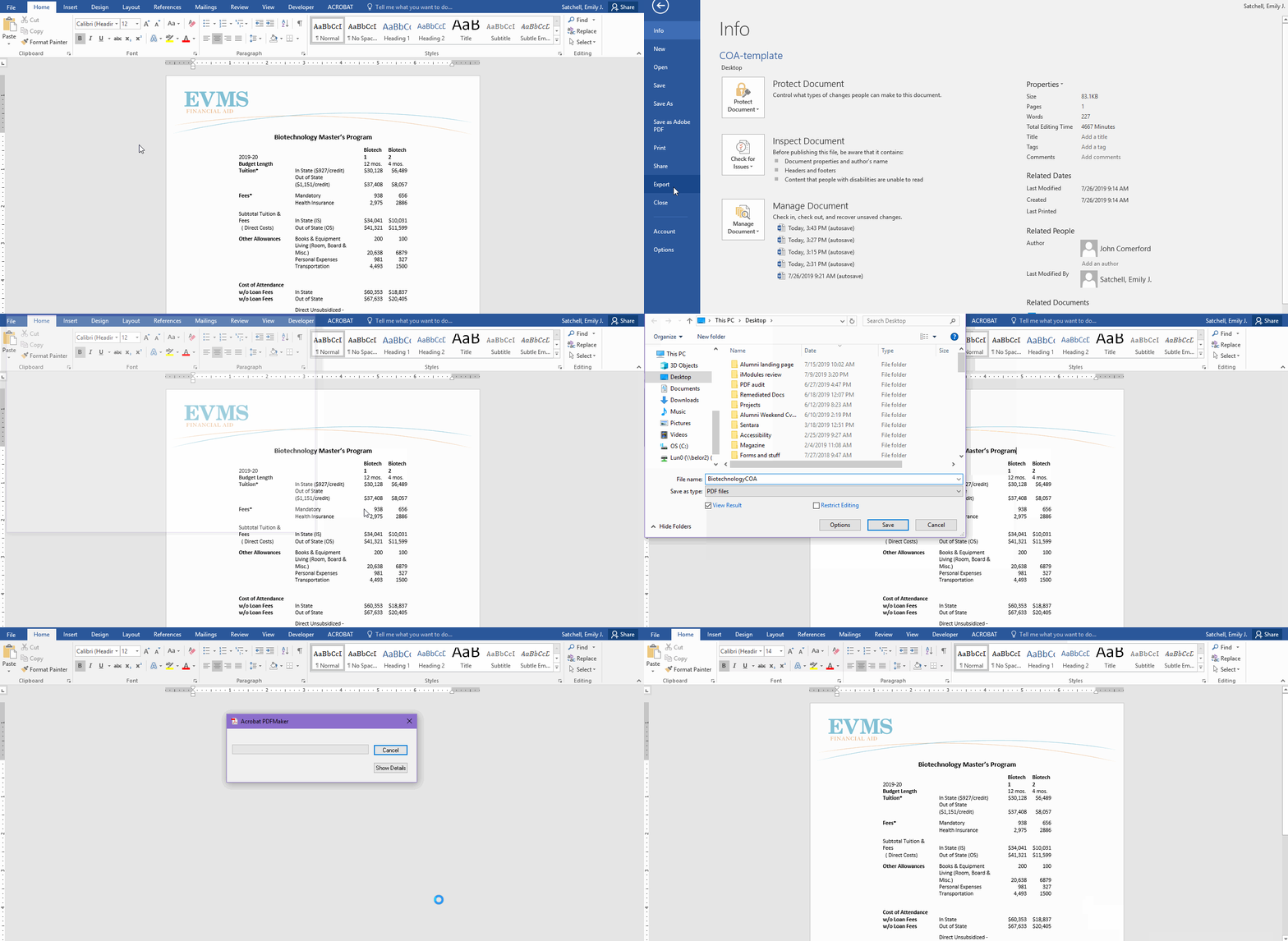
6. Using Acrobat's Accessibility tool, perform a Full Check of the document to see what issues need to be fixed to make the document accessible.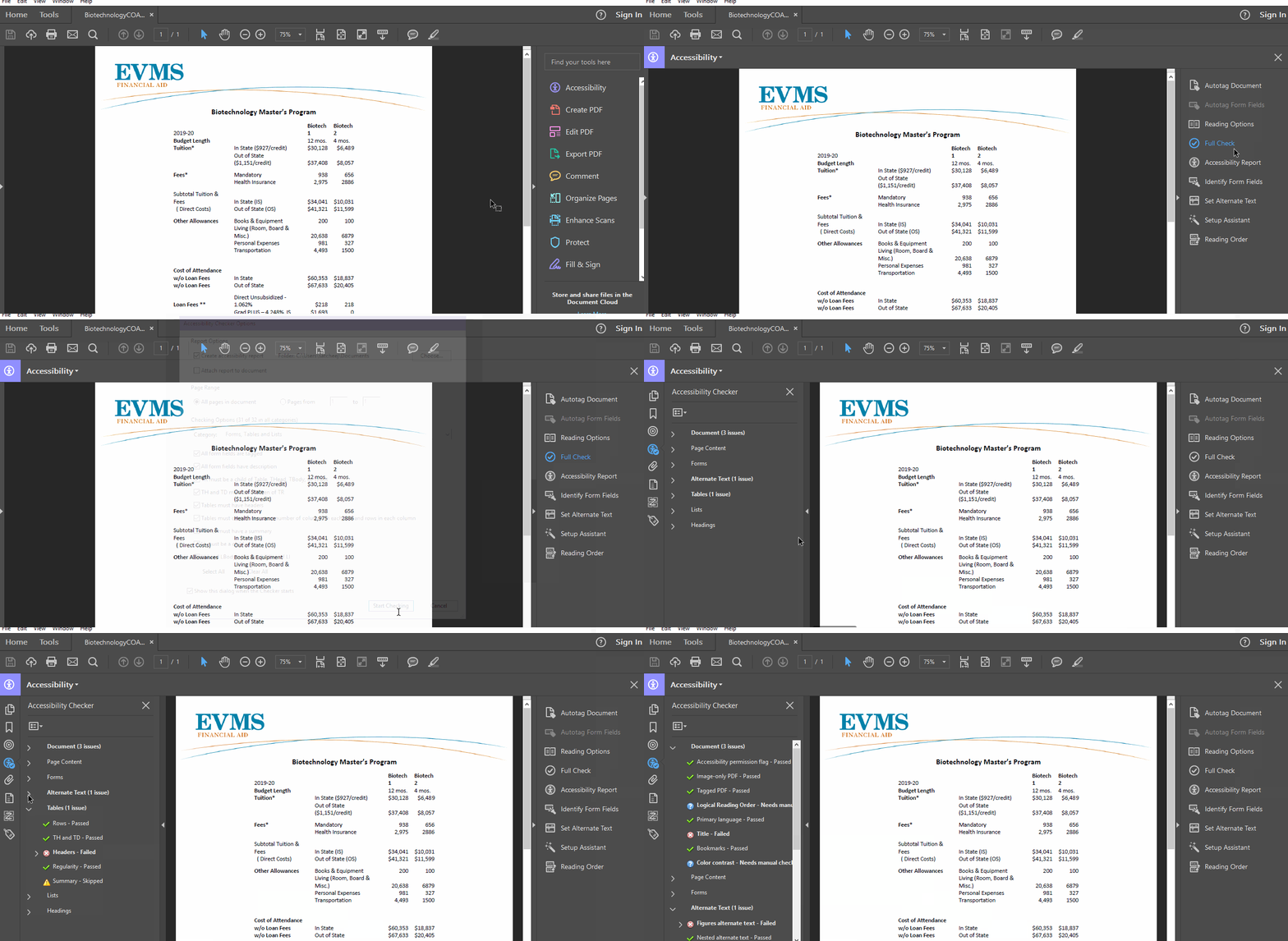
7. Fix the issues flagged in the Accessibility Full Check. Since these documents are created in the same manner, they will typically have the same accessibility issues. Find instructions for addressing these common accessibility issues below.
Title: Add a document title to pass this check.
Figures Alternate Text: Add alternate text to figures or mark figures as background/artifacts to pass this check. (Hint: Add alternate text such as "Financial Aid logo" for the header element and mark the footer element as background/artifact.)
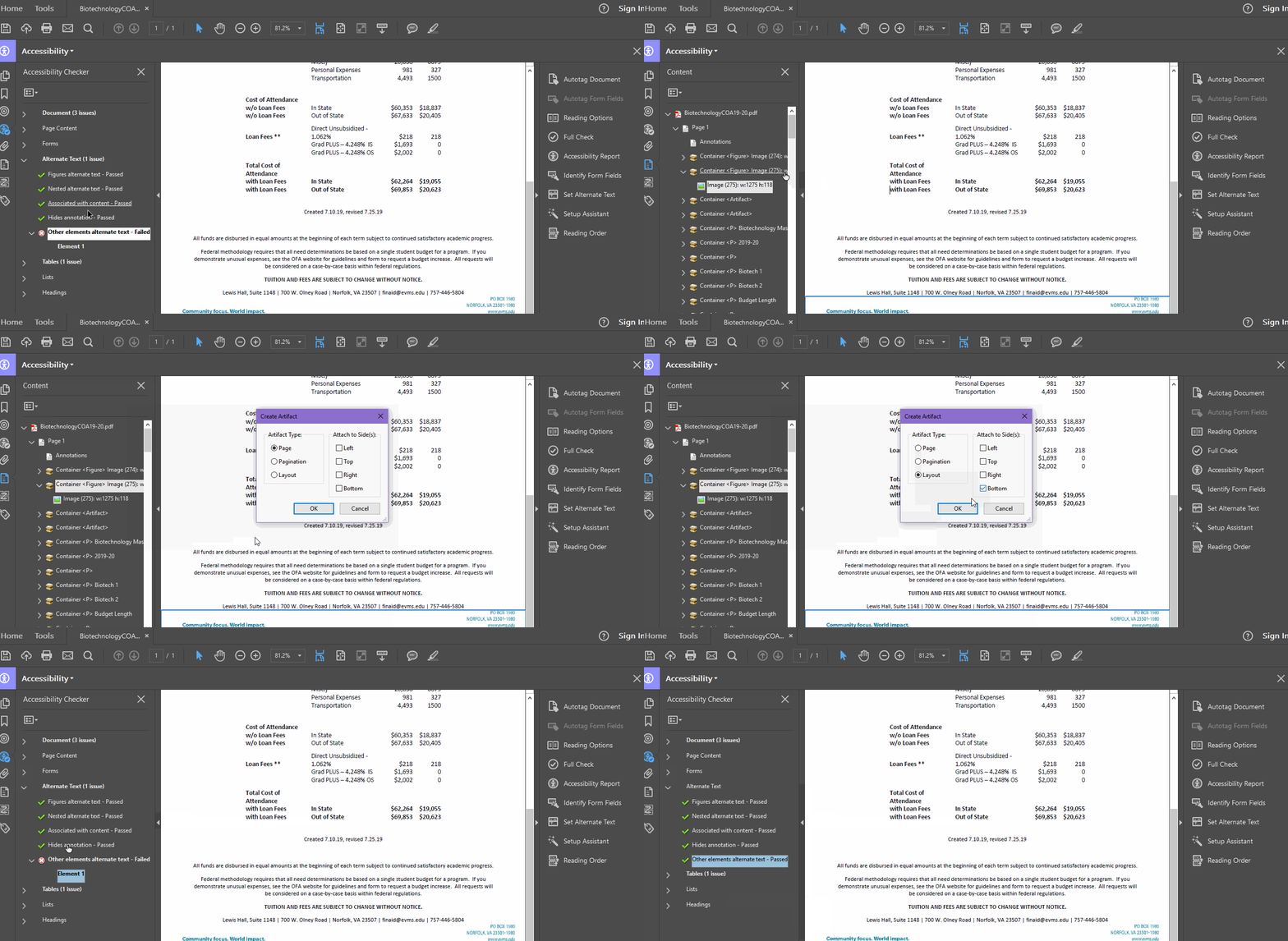
Other Elements Alternate Text: This check typically marks the header and/or footer figures as failing. To fix this issue, right click on the element in the accessibility checker and select "Show in Content Panel." The item will be highlighted in the Content Panel. Right click the parent element and select "Create Artifact."
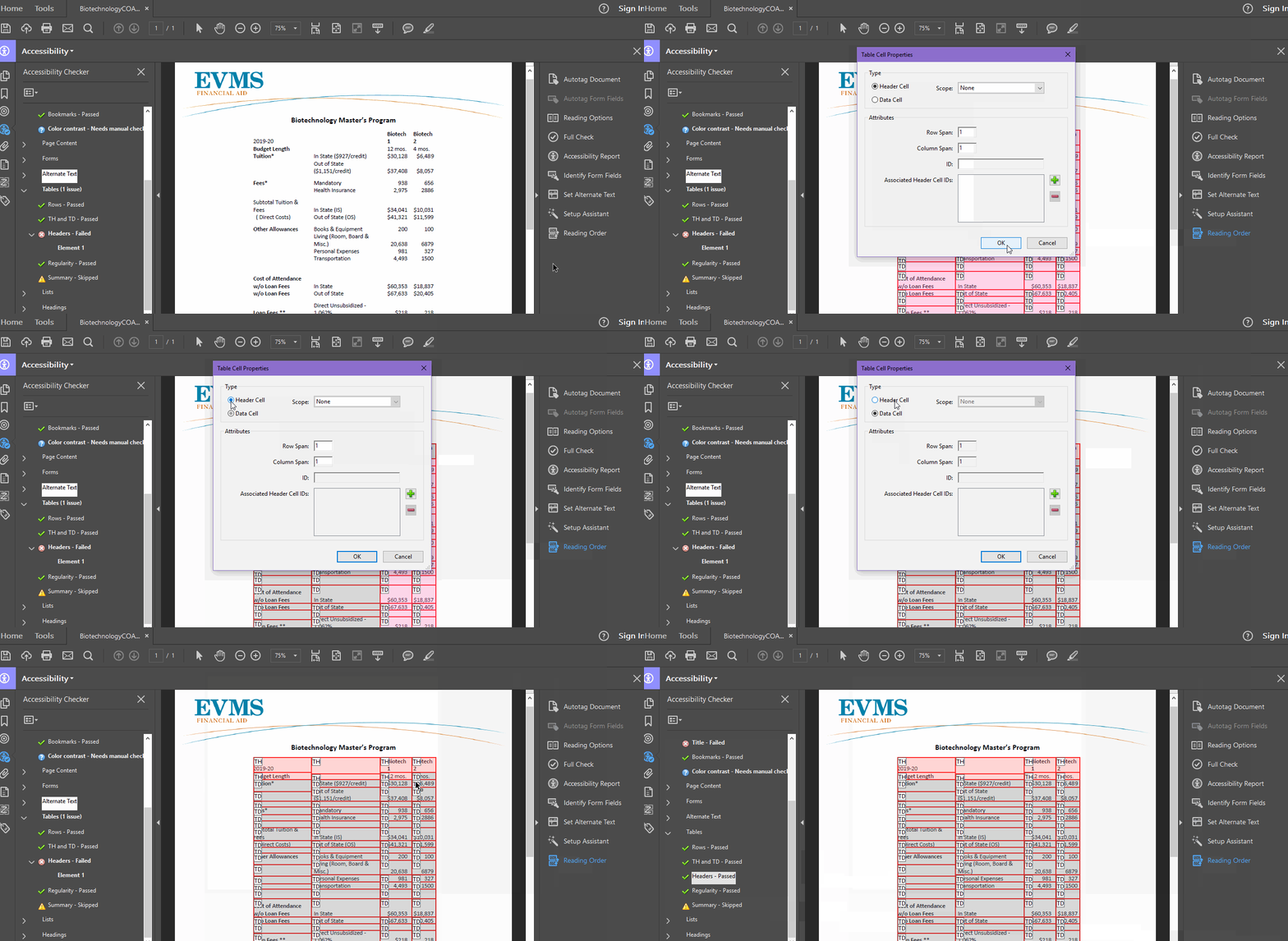
Tables - Headers: Use the Table Editor to add header cells to a table to pass this check. To do this, open the Reading Order tool. Right click anywhere within the table and select "Table Editor" from the options menu. Right click a cell and select "Table Cell Properties." Under the "Type" section, select "Header Cell" to make a cell a header cell. Click the OK button to save your changes.
Should you run into any issues that you cannot resolve, please refer to our PDF accessibility documentation or submit a help ticket and someone on our team will assist you. Thank you!